
INTRODUCTION TO ROBLOX & INSTALLING ROBLOX STUDIO
In this lesson, students are introduced to Roblox as a gaming and creation platform. They learn what Roblox is, how games are played and created, and how Roblox Studio is used to build games. Students will create a Roblox account, install Roblox Studio, and successfully open it for the first time. This lesson ensures all students are technically ready before starting game development. No coding is required.
OVERVIEW
Topics Introduced
- What Roblox is and how it works
- Difference between Roblox and Roblox Studio
- Creating a Roblox account
- Installing Roblox Studio
- Logging in and opening Roblox Studio
- Understanding system requirements and safety basics
TOPICS IN DETAIL
What Is Roblox?
Roblox is an online platform where users can play games and also create their own games. Games on Roblox are created by developers from around the world using Roblox Studio. Players can explore different worlds, interact with other players, and experience games created by the community.
What Is Roblox Studio?
Roblox Studio is the tool used to create games on Roblox. While Roblox is used to play games, Roblox Studio is used to build them. Developers use Roblox Studio to design game worlds, add objects, and later write code to control gameplay.
Why Do We Need a Roblox Account?
A Roblox account is required to play games and to access Roblox Studio. The same account is used to log in to both Roblox and Roblox Studio. This allows users to save their games and continue working on them later.
System Requirements and Safety Basics
Roblox Studio works on Windows and macOS computers. Students should always keep their login details private and follow online safety rules. Parental guidance is recommended when creating accounts.
GUIDED MINI PROJECT
Title
Install Roblox Studio
Project Description
Students install Roblox Studio on their computer and open it successfully using their Roblox account.
Project Requirements
- Roblox account created
- Roblox Studio installed
- Successfully logged in to Roblox Studio
- Roblox Studio opens without errors
STEP-BY-STEP STUDENT INSTRUCTIONS
STEP 1: Create a Roblox Account
- Open a web browser
- Go to www.roblox.com
- Click Sign Up
- Enter date of birth, username, and password
- Click Sign Up to create the account
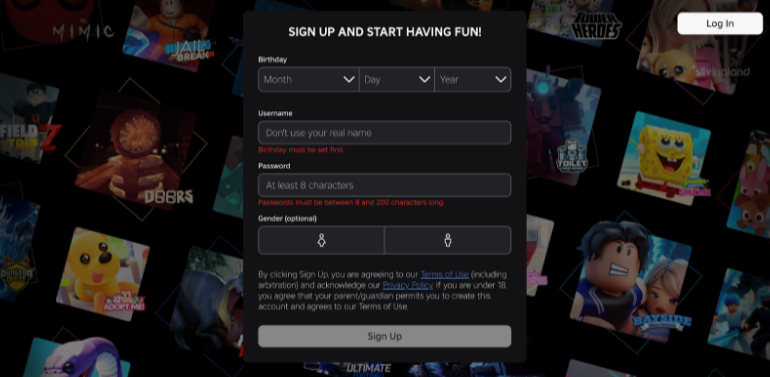
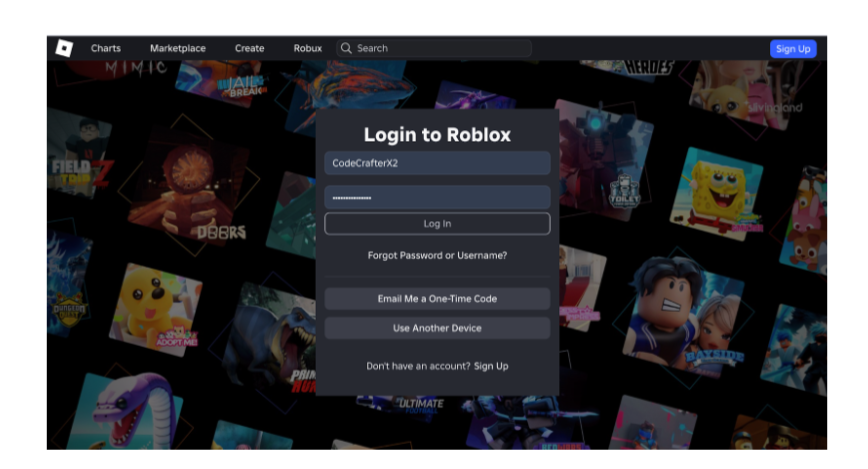
STEP 2: Log In to Roblox
- Go to www.roblox.com
- Click Log In
- Enter username and password
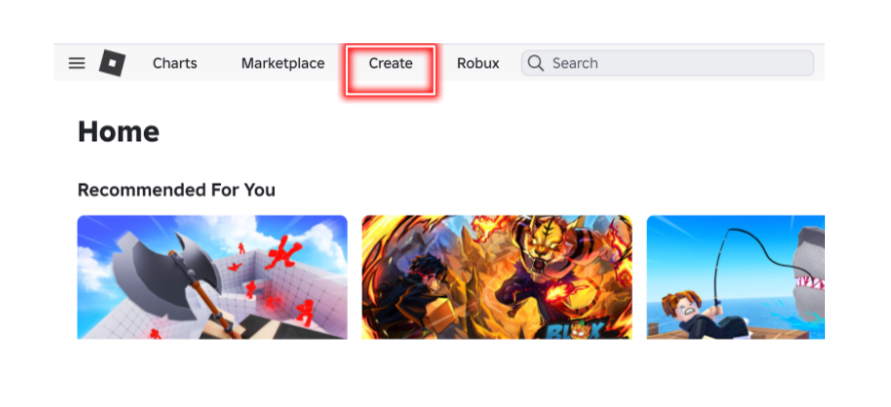
STEP 3: Install Roblox Studio
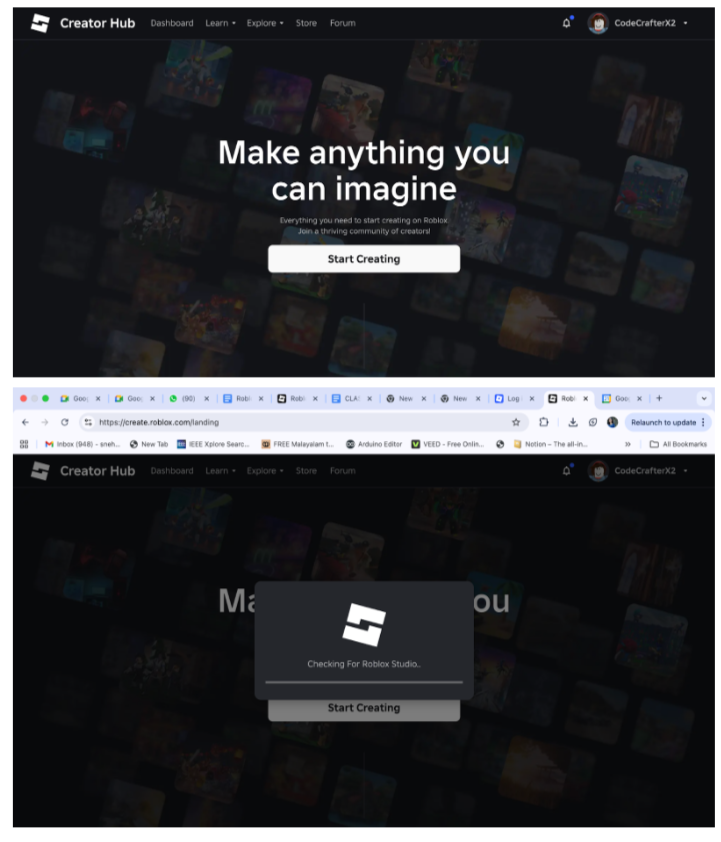
- After logging in, click Create from the top menu
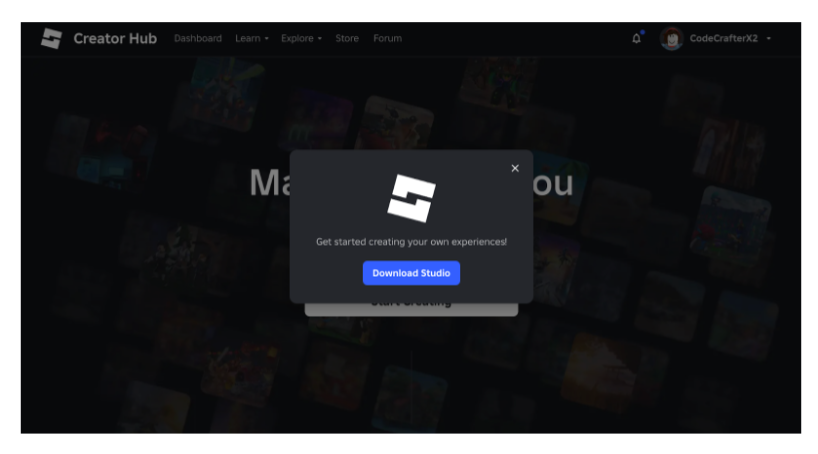
- Click Start Creating
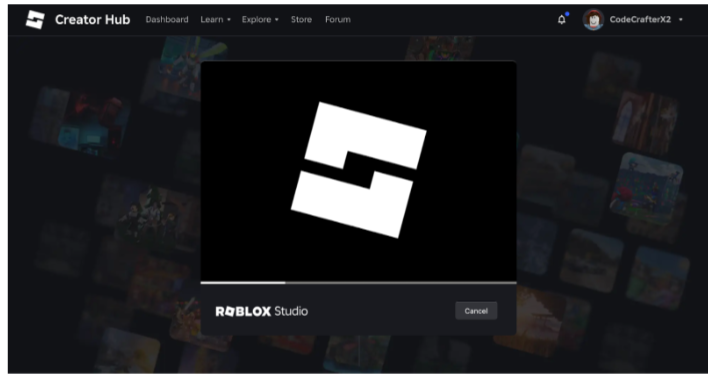
- Roblox Studio will begin downloading automatically
- Follow the on-screen instructions to complete installation
For Mac Users:
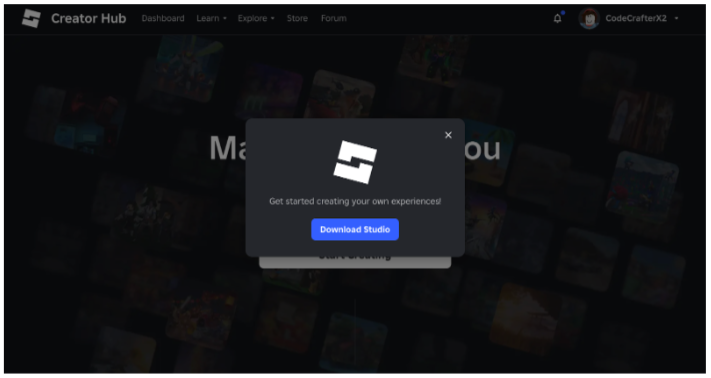
Open Robloxstudio.dmg file after downloading.
STEP 4: Open Roblox Studio
- Launch Roblox Studio from your computer
- Log in using your Roblox account
- Wait for Roblox Studio to load
STEP 5: First Look at Roblox Studio
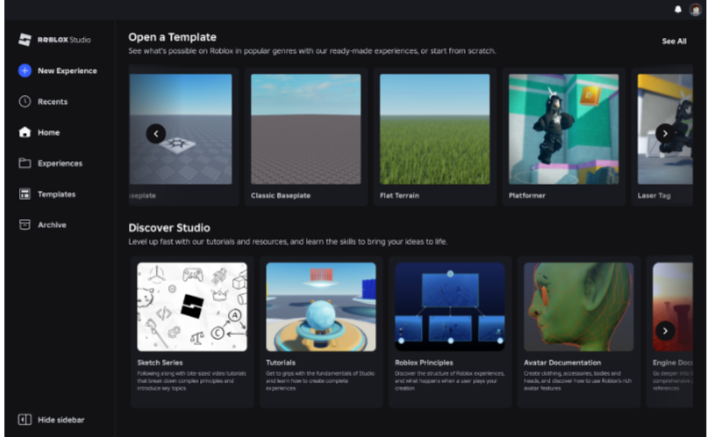
- Confirm Roblox Studio opens successfully
- Observe the home screen
- Do not create a project yet (this will be done in the next lesson)
OUTCOME
By the end of this lesson, students will be able to:
- Explain what Roblox is
- Understand the purpose of Roblox Studio
- Create and log in to a Roblox account
- Install and open Roblox Studio successfully
CHALLENGE/AFTER-CLASS PROJECT
Challenge Title
Ready for Game Development
Challenge Task
Complete all of the following:
- Log in to Roblox without help
- Open Roblox Studio successfully
- Identify where the New / Create option is inside Roblox Studio
Success Criteria
- Roblox Studio opens without errors
- The student is ready to start building games in the next lesson